
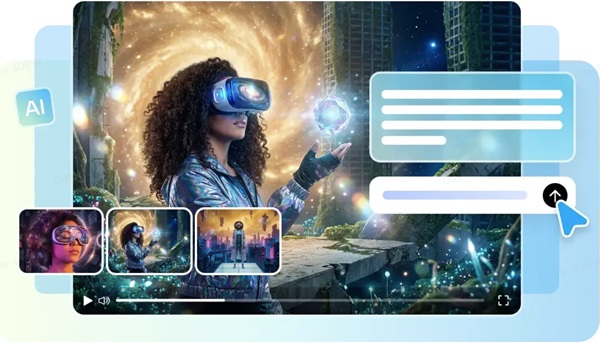
Background flexibility means that a single AI-generated video can be used for various marketing campaigns. Green screen is a technique where a foreground subject can be cut out from their original background to add a new one. This is great for studio presentations, lifestyle content, product showcases, and campaign variations. Pippit is an all-in-one video generation, background editing, refinement, and export solution. The main idea can be kept the same, and the surroundings changed for various audiences and campaigns. This will save you time with creative testing without having to start from scratch.
Understand Green Screen Editing for AI Video
Green screen editing is the process of isolating a foreground subject from a background to be replaced with another background. This provides more control over the visual setting within an AI video generator workflow after the initial concept is generated. It can sometimes be easier to separate your subjects during the editing process when you have a simple green or plain background. The replacement environment must be the same size as the subject and have similar lighting, viewpoint, and message. Check for background patches or halos around hair, hands, etc., where there are more complex edges. If it is to be a replacement, it should complement and not distract from the subject.
Create Background Variations for Different Marketing Goals
Seedance 2.5 can accommodate intricate video concepts that can be tailored for various creative needs. By changing the environment, the marketer can develop several variants, with the message and subject matter remaining the same. A studio setting can highlight product features, and a lifestyle setting can showcase how the product is used in real life. Seasonal options can provide temporary promotions, and high-end areas can help establish a professional commercial look. Themes, colors, and even promotional ideas can be reinforced in campaign-specific environments. Clear positioning of the subject reduces the difficulties in comparing the versions, and the appearance, styling, and visual identity of the product can be maintained by reference images and videos.
Direct Backgrounds Through Clear Prompts and References
Good prompts should build up the setting first, and then include the ornamentation or style. Explain the background, positions of the objects, what is happening, the direction of the light, depth, and atmosphere. Point out where the foreground subject should be located so that the replacement background is spatially believable. Do not make combinations that result in conflicting light sources, unrealistic surfaces, or incorrect perspective. Reference media can convey desired colors, textures, environments, compositions, and visual styles. Utilize appropriate references to support one creative direction rather than mixing unrelated visual elements. Ambiguity is minimized with clear descriptions, which helps with consistency between the subject in the foreground and the replacement environment.
Steps to Design Background Variations Using Seedance 2.5 Green Screen Editing
Step 1: Prepare your green screen setup
- Sign up for Pippit through Google, TikTok, or Facebook.
- Open the “More” tab on the left and choose “Video generator”.
- Select an AI model, such as “Dreamina Seedance 2.5”, for your video generation.
- Enter a prompt describing the subject, green screen setup, background style, lighting, and desired visual changes.
- Choose the video length, language, subtitles, and aspect ratio based on your needs.
- Click “+” to upload reference images or videos from your device, phone, Dropbox, or a link. You can also use available assets.
- Click “Generate” when everything is ready.
Step 2: Generate background options
- After clicking “Generate,” Pippit’s AI video generator creates a video using your prompt and reference media.
- The AI handles transitions, pacing, captions, avatars, voice, lyrics, and visual enhancements.
- Review the draft to see how effectively the subject works with the selected background.
Step 3: Customize and export the background
- Click “Download” in the top right to save the draft. Select “Regenerate” for another version or “Edit more” below the video for additional customization.
- Edit captions, add text, and adjust size, color, alignment, filters, and effects.
- Add background music, remove backgrounds, and refine visual elements for different background variations.
- Click “Export” after completing your edits.
- Choose “Publish” for TikTok, Instagram, or Facebook, or select “Download” to save the video with your preferred format, resolution, frame rate, and quality.
Build Realistic Background Composites
Start with a powerful creative direction and maintain consistency of the foreground subject in variations. Adjust the setting but not the main message or product display. Product videos can be converted into a studio presentation, lifestyle demonstration, campaign ad, or premium showcase. Reference assets may be utilized to help preserve the color, proportion, styling, and brand image of the product from one generation to the next. Pay attention to the foreground and background to make it more realistic. The direction and intensity of the lighting should be appropriate, and the perspective and scale should allow surrounding objects to be proportionate. Add shadows if necessary, especially on the floor or a surface; reflect in shiny environments.
Repurpose Background Variations Across Marketing Formats
Marketers can modify the setting and delivery of the background concept to create several different assets, depending on who and where they are targeting.
-
Produce studio versions focusing on product and demonstrations.
-
Create lifestyle settings that depict products in familiar everyday settings.
-
Create seasonal or campaign backgrounds for promotions and events.
-
Create high-end commercial and brand presentations.
-
Use framing, aspect ratios, captions, and hierarchy of images to suit different platforms.
When creating each version, pay attention to the atmospheric depth, sharpness, contrast, and color temperature. Any composite with mismatching visual properties may give the impression that it is a man-made composite. Check edges around hair, hands, feet, and other fine details prior to exporting. This can be used to support different campaigns without having to re-create a video, with one central concept.
Conclusion
With green screen editing, users can easily swap out backgrounds, environments, and moods without needing to re-create the concept for the AI-generated video. With robust background variation, you can use it for studio presentations, lifestyle content, product showcases, seasonal campaigns, and social media assets. Pippit adds generation, background refinement, editing, and export to the same workflow. Realism can be achieved by consistently placing the subjects and using lighting, perspective, scale, shadows, and depth that work together. By providing clear prompts, relevant reference materials, and careful visual review, multiple useful marketing videos can be created from a single central idea.